Carrier Confirmation

Once the Customer has created an allocation plan, they will send it to the Carrier for confirmation.
Click to watch a quick video about how to confirm the allocation plan & other features!
To Confirm the allocation plan:
1 On the home page, the Plan: Week section will show the status of the forecast as Not Responded. Click Confirm Allocation Plan.
|
Note: If you do not see a Confirm Allocation Plan link, then the plan has not been released yet. |

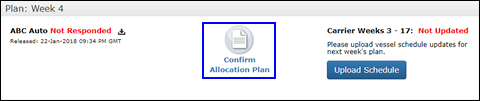
Figure 1: Confirm Allocation Plan Link
|
Tip: Click the Export
icon (
Figure 2: Export Carrier Vessel Confirmation Spreadsheet |

 ) to export a spreadsheet of
the confirmation with three different sheets,
) to export a spreadsheet of
the confirmation with three different sheets, 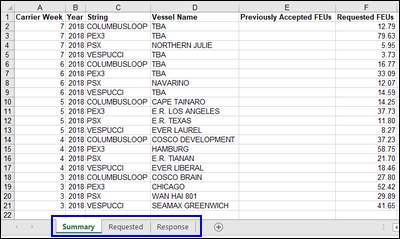
2 A table showing the FEUs allocated per week will be shown. Click any of the String links to view details for that string.
You can click Accept Remaining Volume to accept the volume on all Strings in the plan.
You can click Restart Response to completely remove and start over on the plan for all Strings.
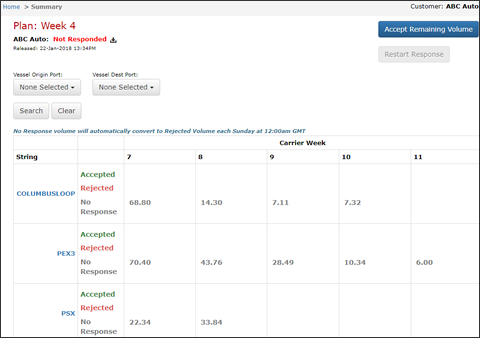
Figure 3: Summary
3 The details for that String will appear.
You can click Accept Remaining Volume to confirm all the requested FEUs for that string.
If you need to restart your responses, you can click Restart Response to remove any responses you have made for the String and start over.
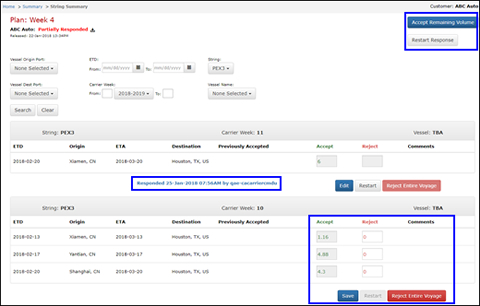
Figure 4: Detailed FEUs for String
4 Review the volume for each individual vessel, make adjustments and click Save.
A timestamp will appear when you have responded to the requested volume for a week.
To accept the volume for a week, just click Save.
To reject all volume, click Reject Entire Voyage, a pop-up window will appear and you will need to enter a comment.
To accept and reject some volume, enter the number of FEUs you want to reject and enter a comment, then click Save.
If you need to edit a response, click Edit or click Restart. You can only click Restart when your original response included rejected volume.
|
Note: If there is volume in No Response status at the end of the plan week (12 AM GMT on Sunday), it will automatically change to Rejected or Accepted, depending on your customer's preference. |
|
Tip: The system will automatically adjust the number of FEUs you enter to match the requested amount. For example, for 3.56 FEUs, you can enter 4 and the system will adjust to 3.56 FEUs. |
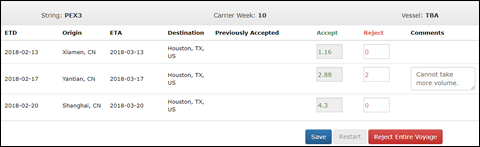
Figure 5: Accept and Reject Volume
5 Once you are finished adjusting and confirming all FEUs, the status will change to Fully Responded and the plan will be sent back to the customer. You can click Restart Response on the plan or any of the vessels to change FEUs.


© 2021 Property of Expeditors International of Washington, Inc. and its subsidiaries.
Business Confidential and Proprietary. Reproduction by written authorization only.
- Created by: Expeditors Technical Communications Department -