Trade Party Screening |
|


Use this to determine if the Trade Partner is a denied party. The screening function in Tradeflow allows you to screen any Trade Partner against the Denied Party List to identify possible matches.
See Government Denied Party Screening Lists for a table of the lists the TRC uses.
To screen a trade partner:
1 Click Regulatory Controls from the left navigation panel. The menu will expand.
2 Click Trade Party Screening.
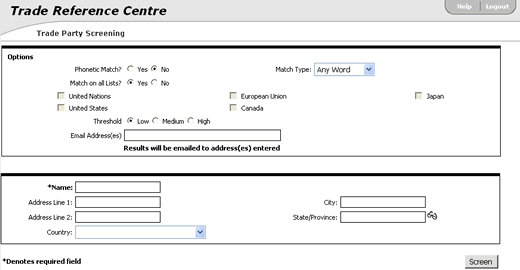
Figure 1: Trade Party Screening Page
3 Fill out the fields and click Screen to screen the Trade Partner. See the field definitions below for more information.
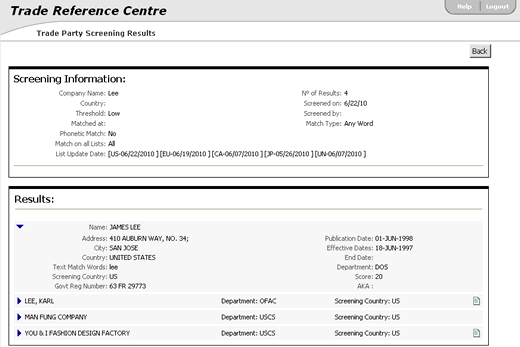
Figure 2: Trade Party Screening Results Page
4 Click  next to each result to view the summary details.
Click  to view the details in PDF format.
There are a number of acronyms in the results you may or may not be familiar with. Here are some of the common acronyms or abbreviations that you might see in the Department field:
BISUL= BIS (Bureau of Industry and Security) Unverified List
CA = Canada
CITA = Committee for the Implementation of Textile Agreements
DOC = Department of Commerce
DOL = Department of Labor
DOS = Department of State
ENT = BIS (Bureau of Industry and Security) Entity List
EU = European Union
FBI = Federal Bureau of Investigations
JP = Japan
LIC = License
OCC = Office of the Chief Counsel (US Department of Commerce)
OFAC = Office of Foreign Asset Controls (US)
PSEPC = Ministry of Public Safety and Emergency Preparedness Canada
TREAS = Department of Treasury (US)
UN = United Nations
USCS = US Customs and Border Protection
See Government Denied Party Screening Lists for more information about these Departments.
A list of the fields that appear in the Screen Trade Partner page:
|
Field |
Description |
|---|---|
| Phonetic Match | Allows you to widen your search by including results that sound similar. Select from:
|
| Match Type | Allows you to create a filter based on the most unique words of a government listing. Up to 4 words from a government restricted list are set per party listing. These keyword choices are an alternative to the sensitivity threshold settings (see Threshold definition below). The values in the drop-down list are:
|
| Match on all Lists? | Option to match on all provided list of countries.
|
|
Threshold |
To minimize the false positives, Tradeflow offers the ability to set a sensitivity threshold for screening:
"Points" are assigned based on the likelihood of a hit. A single word match on a name for example is worth 20 points; a multi-word adjacent match is 30 additional points and an exact match gives you an additional 100. The default settings are Medium for automated screenings and Low for manual screenings. Default settings can be configured for the customer, and restricted for individual users. When using “Phonetic” screening, which affects single-word matches, the sensitivity threshold must be set to Low. See Sensitivity Threshold Example below. |
|
Email Address |
Enter your email address if you want the results to be emailed to you. |
Sensitivity Threshold Example
If Osama Bin Laden is entered (with or without an address):
-
Osama (1 word) = 20
-
Bin (1 word) = 20
-
Laden (1 word) = 20
-
Osama Bin (2 word) = 30
-
Bin Laden (2 word) = 30
-
Osama Bin Laden (exact match) = 100
In this example, the screening would match 220 points. Adjacent words count even if they are on the ignore word list (as do an exact match).

|
|
 Related

© 2013 Property of Expeditors International of Washington, Inc. and its subsidiaries.
Business Confidential and Proprietary. Reproduction by written authorization only.
- Created by: Expeditors Technical Communications Department -